Provisioning overview
Supported desk phones configure themselves: assign a phone to a user, point the phone at the system once, and it downloads everything — SIP account, key layout, ringtones, firmware settings. No typing credentials into phone menus.
Assigning a phone to a user
On the user's page (Admin → Users, IP Phone section) click Configure a Phone: pick the model, enter the MAC address (printed on the phone's label), and choose the connection type. Exovo generates the phone's SIP credentials and a web-UI admin password for it — you never handle either by hand.
Each phone fetches its configuration from a per-system provisioning URL containing a secret token, and only known MAC addresses are answered — a guessed URL yields nothing.
The three connection modes
| Mode | When | How the phone reaches the system |
|---|---|---|
| Local LAN | Phone and PBX share a network | Registers directly to the system |
| SBC | Remote office with several phones | Registers through the site's Exovo SBC, which tunnels everything to the PBX over one TLS port |
| VPN | Individual remote phone | Phone's built-in OpenVPN client connects to the PBX's phone VPN |
For SBC mode you pick which SBC the phone belongs to; provisioning automatically points the phone's outbound proxy at that SBC's LAN address (kept current even if the SBC's address changes) while the registrar stays your system FQDN.
Local LAN mode depends on the Host IP Address under Admin → Connectivity → Network — that's the address LAN phones are provisioned to register against. It's auto-detected from the server's default route, but verify (and save) it before rolling out phones, especially on a multi-homed server — see first login.
Where phones may provision from
Provisioning only answers requests from the addresses in the PROVISIONING_ALLOWED_CIDR
parameter (Admin → System → Parameters). Out of the box that is loopback plus the private
ranges: 127.0.0.1/32,10.0.0.0/8,172.16.0.0/12,192.168.0.0/16. That covers local LAN
phones and phones on the built-in VPN. A request from any other address gets 403 Forbidden,
and the web log records Provisioning: IP … rejected — not in the PROVISIONING_ALLOWED_CIDR allowlist.
Phones in SBC mode fetch their configuration directly from your system's public address. The SBC carries their SIP and audio, not provisioning. The request therefore arrives from the remote office's public IP, which the default list rejects. The same applies whenever the PBX is hosted somewhere other than the phones' network, such as a cloud VM or data centre. Add each remote site's public address to the list, keeping the existing entries:
127.0.0.1/32,10.0.0.0/8,172.16.0.0/12,192.168.0.0/16,203.0.113.25/32
Leaving the parameter blank allows every address. The secret token and the known-MAC check still apply, but the narrow list is the safer choice. Systems installed before this default was introduced may show the parameter blank. Those systems allow every address until you set it.
The Network Interface selector on a phone's IP Phone tab chooses which address the phone's provisioning URL uses — your system FQDN, or that LAN address. Pick the LAN address for sites whose network can't resolve the system's public name internally: phones then provision over plain HTTP by IP (the only path a phone can complete without a matching certificate), and keep re-provisioning from it afterwards. The choice is remembered per phone.
Managing the fleet
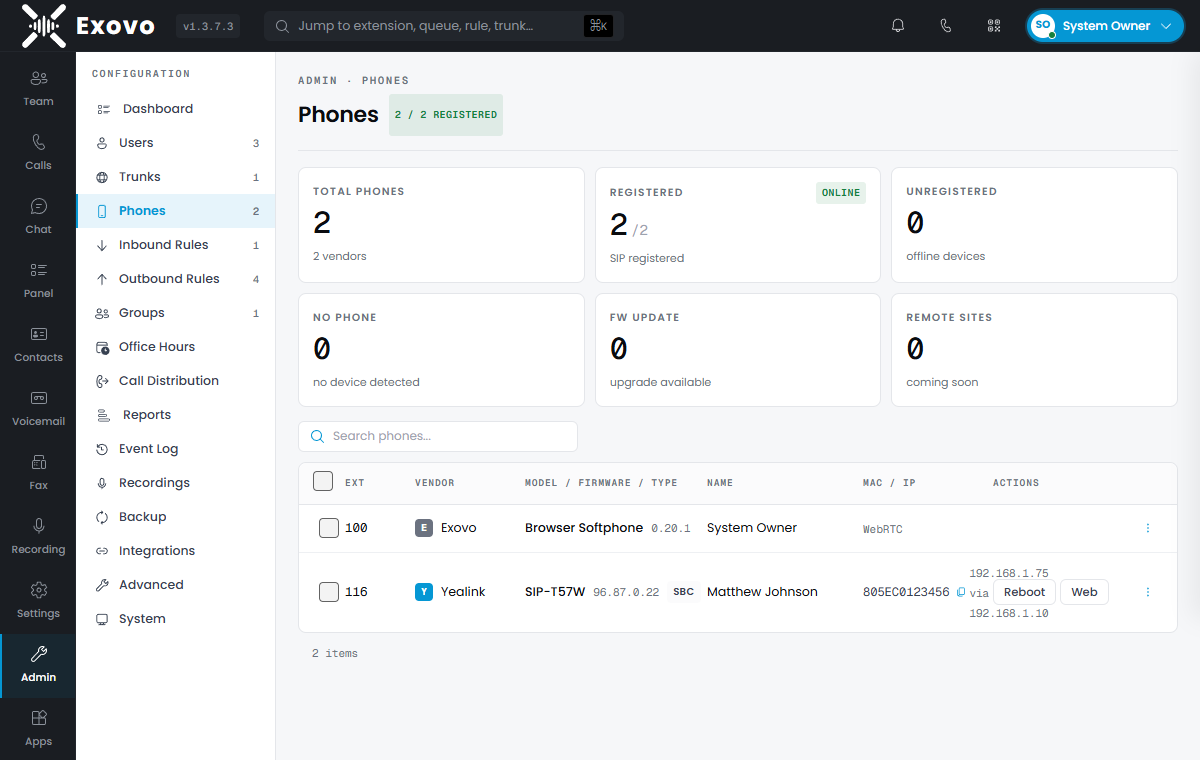
Admin → Phones is the fleet view: every device with vendor, model, firmware, assigned user, MAC/IP and live registration state. Select phones to Reboot or Reprovision (push current settings — most phones apply without a restart). Firmware is upgraded from the phone's own web UI; Exovo does not push firmware. Per-phone actions include the rendered Config view, Auth Info, and Device Web Console — opening the phone's own UI through the console, even for remote phones.
Reprovision after changing anything the phone renders — key layouts, ring settings, display name. The change is pushed live; phones re-fetch and apply.
To restart desk phones on a schedule, set Admin → System Options → Scheduled phone reboot to every day or once a week at a time of your choosing (in the system's time zone; off by default). A phone on a call is left alone and tried again every minute for the next hour; softphones and the Exovo app are never restarted.
The phonebook on the phone
Provisioned Yealink, Fanvil, Snom and Grandstream phones get a remote phonebook from the system and refresh it on their own: the company directory (every enabled user except those marked Hide in phonebook), the shared company contacts, and the phone owner's personal contacts. Each entry carries all of a contact's numbers: main, mobile, business and home. Cisco phones get the same directory through their own enterprise directory.
Key layouts (BLF)
Line keys, BLF (busy-lamp-field) presence keys, speed dials, shared-parking keys, queue login/logout and status-change keys are all configured per user in the console (up to 128 keys on capable models) and rendered into the phone's config — see the vendor pages for model-specific key counts.
Supported vendors
- Yealink T5 series
- Fanvil X and V series
- Grandstream GRP series
- Snom D series
- DECT bases and FXS adapters
A phone outside these lists still works as a generic SIP device — create the user, read the SIP credentials from Auth Info, and configure the phone manually. You lose zero-touch and central key management, not calling.
No desk phone at all?
Users who work from a PC don't need provisioning: the Exovo app for Windows enrolls itself when the user signs in, and its programmable-key strip renders the same key layout a desk phone would.