Extensions and users
In Exovo a user and their extension are one identity: the same record carries their web client login, SIP credentials for devices, voicemail box, forwarding behavior and permissions.
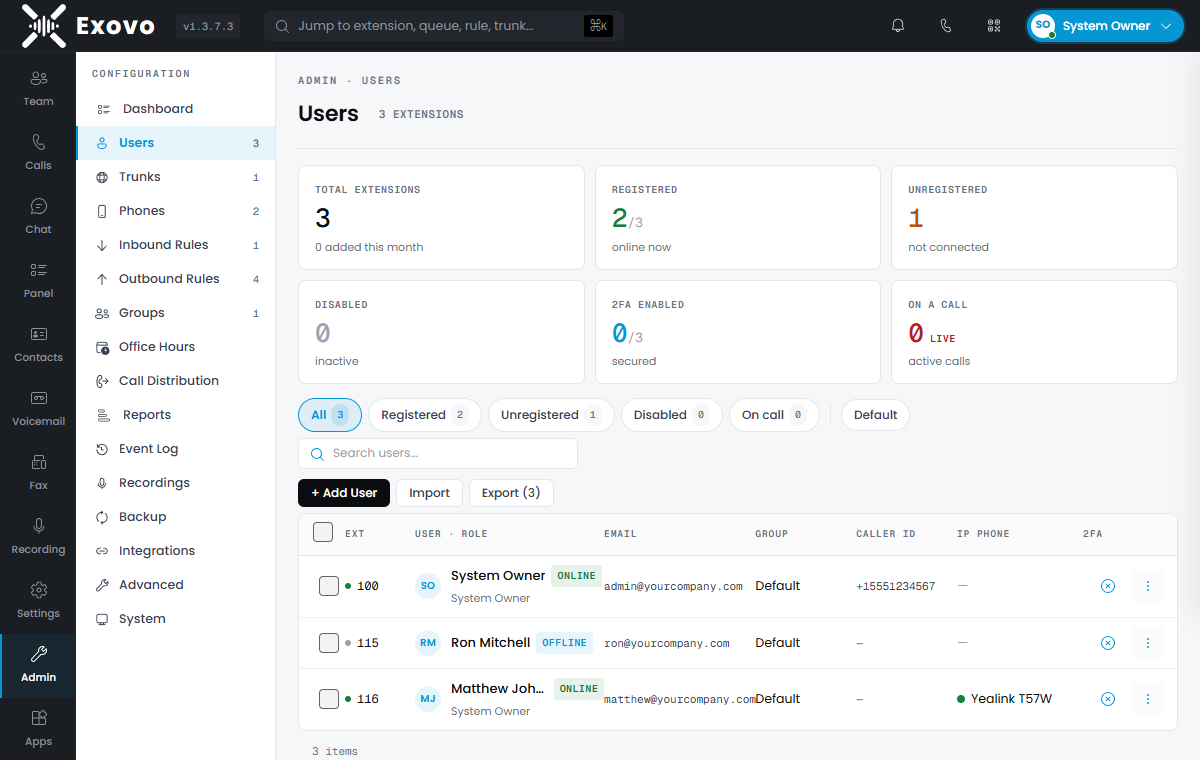
Creating an extension
Admin → Users → Add User. The essentials are the extension number (fixed once created), first/last name and email — email is where voicemail notifications and system mail go, and doubles as a sign-in name. Optional from day one: mobile number, outbound caller ID (the DID shown when this user dials out — see Caller ID), and a separate fax caller ID.
Tick Send welcome email on create to email the new user their sign-in details and a softphone setup QR (the QR embeds a provisioning code valid for 7 days). The option is available only once SMTP is configured under System → Email.
The status dot in the list tells you at a glance whether the user's devices are registered (green), offline (gray) or the account is disabled (red). Filters across the top narrow the list by group, role and registration — plus a live On call filter that shows only the extensions in a call right now, with a running count beside it.
Bulk management: export, import, copy
For onboarding a whole team, the Users toolbar has Export, Import and Copy.
- Export downloads the roster as CSV — extension, name, email, mobile, outbound caller ID, role and group. Passwords are never exported.
- Import creates users from a CSV in that same shape (only the extension is required). Paste or upload the file and Exovo checks every row before creating anything: numbers must be valid and unassigned, roles must be ones you're allowed to grant, and groups must already exist — you see a per-row Ready/skipped preview, and only valid rows import. Each new user gets a freshly generated password. Round-trips cleanly: export a roster, edit it, re-import the additions.
- Copy (select one user) clones that user's settings — role, group, caller ID, forwarding, recording and hours — to the next free extension number. Credentials and identity (email, mobile, registered phones) are not copied; the copy gets its own generated password.
Deleting a user first shows where the extension is still used: inbound rules and trunk routes, queues (as an agent, a supervisor or a closed-hours destination), ring group members, receptionist menu options, other users' forwarding and phone keys, key templates and the settings that name it. You can still delete it. The list shows what to repoint, because those places will ring nothing afterwards.
Deleting a user, or changing their extension number, also revokes their Exovo app devices, because an enrolled app acts as that number. After a renumber the user signs in to the app again to get the new number.
The numbering plan
Numbers are 2-5 digits, and mixed lengths coexist — routing matches complete dialed numbers, so 3-digit extensions can live alongside a 4-digit branch plan without conflict. A few rules keep the namespace sane:
- One namespace. Extensions, queues, ring groups and digital receptionists share it — the system rejects a queue numbered like an existing extension.
- 90000-90099 is reserved for system device identities (gateways register with numbers allocated there) — user numbers in that range are rejected.
- Emergency numbers (911, 933, 411, 112, 999, 988) can never be assigned.
- Prefix overlaps warn, not block: creating extension
1001alongside100is legal, but desk phones that dial on digit-timeout make the overlap mildly annoying, so the console points it out and lets you decide.
Roles and access
Each user has a role: User (the default — web client, own settings), Group Admin / Group Owner (manage users within their group), or System Admin / System Owner (the Admin console). Independent of role, the Users list shows each user's 2FA state (see below): on, required but not set up yet (amber; the user is made to set it up at their next sign-in, and the 2FA not set up filter lists them), or off. It also shows account Active/Disabled status.
A Manager's or Group Admin's reach is the groups they belong to — one or several. They see everyone in the Users list, but opening a user for editing, removing them, resetting two-factor and impersonating (Group Admin and up) are limited to people who share a group with them — and never anyone who outranks them. System Admins and System Owners are tenant-wide.
Changes reach sessions that are already open, within about a minute. A user whose role is lowered loses the pages the new role doesn't allow without being signed out. A user who is disabled or deleted, or whose password changes (by them or by an administrator's reset), is signed out of every browser and has to sign in again.
Requiring a PIN to call out
For a phone anyone can pick up (a booking room, a lobby, a shared desk), tick Require a PIN to call outside on the user's Permissions tab and set a Dial-out PIN. Every outside call from that extension then asks for the PIN before it connects; internal calls don't. The PIN is separate from the voicemail PIN, since the person being restricted may know that one.
- Valid for (seconds) lets one correct PIN cover the calls that follow. 0, the default, asks on every call: anything higher lets the next person to pick up inherit the authorisation.
- Emergency numbers are never blocked, even while the extension is locked out.
- Five wrong entries lock it for ten minutes. Saving a new PIN here clears the lockout at once.
Status options
An administrator can lock a user's status (the user's page, Options): pick the status, and the
user can no longer change it from the web client, the app, a desk phone (*3) or the public API until
it's unlocked. Useful for a shared lobby phone or a line that must stay on its night routing.
Each status (Available, Away, and the custom ones) carries a few switches that change how calls reach you while you are in it:
- Accept a second call while I'm on one. Leave it on and a second caller beeps in — call waiting. Turn it off and while you are talking the next caller is treated as busy and follows your forwarding: your busy destination if you set one, otherwise your voicemail. It counts any call you are on, including one that reached you through a queue or a ring group. Queues follow it too: while you're on a call of your own (one you made or took directly), your queues offer you nothing until it ends.
- Accept calls from Ring Groups. Off keeps ring groups from ringing you while you are in this status. If every member has it off, the call goes to the group's no-answer destination. A page still reaches everyone.
- Log out from queues. Switching into a status with this ticked logs you out of your queues;
switching to one without it logs you back in. Logging in or out by hand (
*62/*63) sticks until your status next changes between one of these and the other.
Two-factor authentication
Exovo supports app-based two-factor authentication (TOTP) — the six-digit codes from Google Authenticator, Authy, 1Password and similar apps. Because a valid code can only come from the user's own authenticator, users switch it on themselves: under Settings → Security they choose Set up two-factor authentication, scan the QR code (or type the shown key into the app), and enter one code to confirm. After that, signing in asks for a code once the password checks out.
Admins don't hold users' authenticators, so they can't turn 2FA on directly — instead they set policy and handle recovery from Admin → Users:
- Require it — select users and choose Require 2FA (or tick Require on a user's edit page). A required user can't turn 2FA off themselves, and the list flags anyone who hasn't set it up yet as Required — not set up.
- Reset it — Reset 2FA clears a user's enrolled authenticator (lost-device recovery) so they can enroll a new one; if 2FA is still required they're prompted to set it up again.
Codes are time-based with a small clock-skew tolerance, and a used code can't be replayed. Pair 2FA with SSO and the hardening steps for defence in depth.
Impersonation
To see exactly what a user sees — to reproduce a problem or check their setup — select them in Admin → Users and choose Impersonate. The console reloads as that user, with an amber banner across the top (Viewing as … · Exit impersonation) so it's always obvious you're not in your own account. Exit impersonation returns you to your admin session, and an idle impersonation also ends on its own after about 15 minutes.
Guardrails: you can't impersonate yourself, a disabled account, or anyone who outranks you (a System Admin can't take over a System Owner), and you can't nest one impersonation inside another. Every action taken while impersonating is written to the audit log against both identities — the user and the admin behind them — and starting and stopping impersonation are logged too.
Reset password on the toolbar regenerates the user's credential set — web client password, SIP password and voicemail PIN together.
Groups and group permissions
Every user belongs to a group (new users land in the Default group). Groups (Admin → Groups) are both an organizational unit and a permission boundary: for each member you grant per-colleague rights — show my calls, barge-in/listen/whisper, see presence, see calls, call operations (transfer/park/pickup), user operations, send fax. These grants are what the operator panel enforces, so who may supervise whom is decided here, not on the panel. New members start with nothing granted.
Voicemail settings
Per user: voicemail PIN, greeting, and email options — none, a notification, the message as an attachment, or attachment-and-delete (the mailbox lives in email). The email includes the transcription when transcription is on. Send email on missed calls sends a note when a call rang the extension and went unanswered (a ring-group call a colleague took is not a missed call, and queue calls are left to the queue's own notifications). Toggles cover playing the caller's number before the message and skipping PIN authentication from the user's own devices. See what the system sends.
The voicemail keypad
Dial the voicemail extension and the mailbox follows the keypad people know from 3CX:
| Where | Keys |
|---|---|
| Main menu | * play messages, 1 saved messages, 9 options, # exit |
| While a message plays, or after it | 0 next, 1 previous, 2 repeat, 3 delete, 4 call back, 5 forward to another mailbox, 6 save, 7 email it to yourself, 9 options, # exit |
| Options | 2 choose greeting, 5 record your name, 7 change PIN, 8 record greeting, # back |
Spoken names
Without a greeting, voicemail normally says "the person at extension 1 0 1 is not available". Turn on Announce names with text-to-speech under Admin → Call Features → Voicemail and it says the user's name instead: "John Smith is not available", in a natural-sounding voice. Name order chooses "First Last" or "Last First". New installations start with it on.
- A name is generated when a user is added or renamed, and for everyone when you turn the option on or change the order. Regenerate all names does them all again.
- On a user's page, Spoken name previews the name and Regenerate makes it again.
- Anything the user set up plays instead: a custom greeting chosen here, or a greeting or name recorded from the phone's voicemail menu.
- The voice reads names with English pronunciation. If a name comes out wrong, the user can record their own from the voicemail options menu (option 5).
Names are generated on the phone system itself; no names leave it.
A message played by mistake can be put back: Mark unread beside the READ badge restores the NEW badge and re-lights the phone's message-waiting lamp. The lamp itself lights the moment a message is left — pushed over the phone's registration, so phones that never subscribe for message waiting (Cisco among them) see it too.
Forwarding and status
Each user has forwarding behavior per status (Available, Away, DND) — where calls go on no answer, when busy, or always. Users manage their own under Settings → Call Forwarding; a Forward All rule takes the extension out of normal ringing entirely, with exception rules for specific call types or times. Every forward target — voicemail, another extension, a queue, ring group or digital receptionist, or an external number — is chosen from a picker, so you select an existing queue or IVR by name rather than remembering its number.
When more than one exception rule could match a call, they're evaluated top to bottom and the first match wins — use the Move Up / Move Down arrows on each rule to set that priority.
From any phone, *21* then a number then # (for example *21*5551234567#) forwards every
call to that number or extension, and #21# stops. It appears as a Forward All rule at the top of
the user's exceptions, so it wins, and it replaces itself each time; the user's own rules are left
alone. A user whose forwarding is locked by their administrator can't use it.
A forward whose destination is a mailbox goes straight to that mailbox rather than ringing the extension first, and a forwarding chain that comes back to itself or exceeds the hop limit drops to voicemail instead of ringing forever.
Call screening and announced transfers
Tick Screen calls by requesting caller name on a user's Permissions tab and outside callers are asked to say their name before that person's phones ring. Whoever answers hears "this is a call from" and the name, and presses 1 to take the call; if they don't, the call carries on as if unanswered (the next Find Me step, then voicemail or the no-answer destination). An outside call a colleague transfers to that person is screened the same way, so the transfer is announced without the colleague having to stay on the line. Calls between colleagues are never screened.
While it is on, the user's Call Handling tab says so, with a link to the setting.
Find Me / Follow Me
Instead of ringing the desk once and giving up, an Available-type profile can ring in stages: up to five ordered steps, each ringing your own devices and/or one other target — an extension or an external number like your mobile — together for a chosen number of seconds before moving to the next (e.g. desk 10s → desk + mobile 15s → voicemail). After the last stage, the profile's unanswered-calls forwarding applies as normal, so voicemail is never skipped. External stages dial out through your own outbound rules and caller ID — Find Me can't reach anywhere you couldn't dial yourself.
Per-call outbound caller ID
Beyond the single outbound caller ID, an admin can grant a user a list of additional allowed caller IDs (on the user's Permissions tab). The web dialer and the Exovo app's dialer then show a Caller ID picker, and the chosen DID is presented for that call, including a call the app places through your desk phone. It's useful when one person answers for multiple brands or departments.
The list is ordered, and the order matters on a desk phone: a number's position is the digit you
dial after the Choose caller ID dial code (*8 by default).
- One call:
*82followed by5551230123presents the second number for that call only. - Switch until you switch back:
*82on its own, or a Caller ID key, makes every call present the second number (desk phone, web client and app alike) until you press it again or dial*80. On a provisioned desk phone the key's lamp is lit while it's in force, so a switched phone is never mistaken for a normal one. Add the key on the user's BLF tab (type Caller ID, pick the number, give it a label such as the brand name).
A position the list doesn't have refuses the call (or the switch) rather than presenting a different number, and removing a number from the list ends a switch to it. Switching changes outbound calls only: inbound ringing, voicemail and call history stay the extension's own. The selection is validated server-side against the allowed list and falls back to the default when it doesn't match, so users can only ever present numbers an admin approved.
One identity, many devices
The same extension registers from a provisioned desk phone,
the web client in a browser, the Exovo app for Windows and the
mobile app — simultaneously, and an inbound call rings all of them together. The per-extension
registration cap (MAX_REGISTRATIONS_PER_EXTENSION under System › Parameters, default 10)
bounds a leaked credential without getting in the way of a person with a phone and three apps; a
system upgraded from a release that seeded the old limit of 3 is lifted to 10 automatically unless
an administrator set the value by hand. Ring behavior, presence and
history stay unified, and assigning a desk phone is a two-click affair from the user's IP
Phone section (including per-key BLF/speed-dial layout, up to 128 keys on capable phones).
The Exovo app needs none of this: signing in (or entering a one-time pairing code minted from the web client's Provision apps button) enrolls the device automatically.
To set up a third-party SIP softphone, use QR Code on the user's edit page. It shows a scannable code plus the SIP account settings (server, extension, auth ID and password). The code is one-time and expires in 15 minutes; type the shown settings into the softphone by hand. Each time you open the dialog a fresh code is issued and the previous one stops working.